Table of Contents
Dispatcher service reference
The configuration of the Dispatcher service is done through the Console. You can configure the following items/functionalities:
- Dispatcher behaviours
- Render pools
- Repositories
- Accounts
- Templates
Dispatcher preferences
The dispatcher preferences window lets you configure every behaviour of the Dispatcher service.
General
The following window shows the General properties:

- Start Dispatcher selection engine on startup: Tells Muster to automatically start the Dispatcher selection engine after the boot sequence
- Remove orphaned instances: When an instance connects, Muster checks the total amount of instances for that node, and remove previously registered ones, if present.
- On templates editing, backup snapshots: When you change the templates on the Dispatcher service, an entire snapshot of the current status is backed up on a dedicated folder into the templates folder
- Distinguish instances by: This tells the Dispatcher what parameter to use to distinguish the render client instances. If you change from IP address to host name (i.e.) you’re allowed to use a DHCP to assign the addresses to the render farm
- Maximum concurrent tasks threads: Defines the maximum amount of tasks (Image assembling, pre/post job actions) runnable by the Dispatcher
- Requeue chunks on disconnection: If an instance is disconnected and flagged offline, tells Muster to requeue the chunk assigned to that particular instance
- On requeue increase chunk's requeue counter: Each chunk has a global requeue counter to prevent an infinite requeue. By selecting this option, on each requeue the counter is increased by 1, otherwise it's left untouched and you'll need to manage requeue manually
- Global chunks timeout in minutes: Defines a global amount of time in minutes to use as a timeout value for chunks processing
- Maximum chunks requeue: Defines a global maximum amount of times a chunk can be requeued, this option has sense when the increase chunk's requeue counter is enabled
- On chunk failure, abort client activity: If the timeout for a chunk expires, Muster tries to abort the client activity that may be locked
- Login data: Specifies an account and a password to use when the Dispatcher should access network files. You should keep those settings blank and configure the users used in the services configuration for Windows, or into the startup scripts files for Linux or Mac
- Launch any process inside a shell: If you want any process to be encapsulated inside a shell to inherit environmental variables, you can enable this option.
- Substitution Paths are case sensitive: Defines the sensitivity of the substitution paths case into the repositories
Network
The following window shows the Network properties:

- Clients network port: Defines the TCP/IP network port used to listen for incoming instances connections. You can also bind the port to a specific interface by specifying its IP address
- Management network port: Defines the TCP/IP network port used to listen for incoming management connections. You can also bind the port to a specific interface by specifying its IP address
- Notificators network port: Defines the TCP/IP network port used to listen for incoming notificators connections. You can also bind the port to a specific interface by specifying its IP address
- Heartbeat resolution: Defines an interval to be used to send pulses to the clients to check they are still alive
- Clients RX buffer: Defines the amount of bytes storable in the network buffers
- Clients TX buffer: Defines the amount of bytes storable in the network buffers
- Management RX buffer: Defines the amount of bytes storable in the network buffers
- Management TX buffer: Defines the amount of bytes storable in the network buffers
- Notificators TX buffer: Defines the amount of bytes storable in the network buffers
- Maximum attempts: Defines the maximum number of attempts the Dispatcher does to wake up an host using the Magic Packet technology. A value of 0 disables the wake up globally
- Warm up in seconds: To give time on a full reboot , you can specify a warm up in seconds required before starting the Wake up logic
- Delay between each attempt: Defines the delay between each wakeup attempt
- Update internal statistics each: Defines an interval to use to update and store the internal status of the Dispatcher.
- Broadcast network statistics each: Defines an interval to use to broadcast the internal status of the Dispatcher to Consoles.
Queue
The following window shows the queue properties:

For each database end point (data storage, history data storage, and backup data storage), you have the following options:
- Database driver: Choose the driver to use to access the Muster database (Sqlite, Mysql or Sql server). You’re allowed to use Sql server only on a Windows based Dispatcher.
- Database address: The IP address of the database if applicable
- Login username: The login name to access the database
- Login password: The password to access the database
The jobs behaviours can be configured by the following options:
- Enable parallel rendering at the same job priority:
- Folders priority calculation mode: Specify how to consider the priority of the jobs inside folders
- Default: Folders are evaluated like regular jobs, when a folder hits its priority, the jobs inside are evaluated using their own priority
- Flatten: Do not considers folders priority, but flattens the entire queue. The jobs with the highest priority starts first regardless on its position
- Cumulative: Sums the priority of the folders and the jobs inside, then flatten the queue. The job with the highest priority considering the sum of its parent priorities starts first
- Jobs in the emergency queue kills active renders…: If you have a job that targets the emergency queue, regular jobs are terminated
- Build jobs status array: Builds an array of statuses for each job to display the status of each chunk in the progress bar
- Calculate jobs progresses using sub chunks progresses: When calculating an overall job progress, takes also into account the current chunks progress
- Submit jobs in paused status: New jobs are submitted paused
- Reset chunks counters on reinit: When you reinit a job, the inner chunks requeue counter is reset
- Increase chunks requeue counter on events: When you resubmit a chunk on hold manually or other similar events, the requeue counter is increased
- Prefilter parent pool: If activated, a folder that specifies a destination pool will filter the hosts available to childs jobs, regardless of the settings of the pool of the childs jobs, that may apply an additional filter
- Automatically backup deleted jobs: Backups deleted jobs automatically before their removal
- Flag completed jobs as archived: Completed jobs automatically get archived
- Flag jobs as archived after: Specifies an interval for the automatic archive feature
- Delete archived jobs after: Specifies an interval for automatic removal of archived jobs
- Backup and delete jobs after: Specifies an interval for automatic backup and removal of jobs, you can specify if this applies to archived jobs too
Logs
The following window shows the logs properties:

- Activity/Severity level: Specifies the severity level for the activity logs
- Activity/Destination folder: Specifies a destination path for the activity logs
- Activity/Clear logs older than: Clears the activity logs after a certain amount of days
- Activity/Clear older logs when the size exceeds: Clears the activity logs when their cumulative size exceeds a certain amount of Megabytes
- Actions/Destination folder: Specifies a destination path for the actions logs
- Actions/Clear logs older than: Clears the actions logs after a certain amount of days
- Actions/Clear older logs when the size exceeds: Clears the actions logs when their cumulative size exceeds a certain amount of Megabytes
- Enable system events: Tells Muster to log events related to the Dispatcher activity
- Enable users events: Tells Muster to log events related to users actions
- Enable hosts events: Tells Muster to log events related to hosts activity
- Enable hosts failure events: Tells Muster to log events related to hosts failures
- Clear the log when it contains more than : Automatically clear the logs when it reaches the specified amount of entries
- Log processes command line: Adds the command line used to start the process at the top of each log file
- Log processes return codes: Adds the process exit code at the bottom of each log file
- Redirect templates python output to: Select where to redirect the output of Python when executed on the Dispatcher:
- None: No output
- Standard out/err: Redirect on the console output, you must run the Dispatcher in a console to see the output
- Logs: Concatenates the output into the activity logs
Actions
The following window shows the Actions properties:

- Job actions failures / Pause job: Pauses a job if it encounters a failure during an action execution
- Job actions failure / Lock job: Locks a job if it encounters a failure during an action execution
- Chunks actions failure / Abort processing: Aborts a chunk processing if it fails the pre chunk action
- Chunks actions failures/ Requeue chunk: Requeues a chunk if it fails the pre post chunk action
- Chunks actions failure / Increase chunk requeue counter: Tells Muster to abort a chunk processing if it fails the pre chunk action
- Chunks actions failures / Add job to exclusions list: Puts a job in the client exclusions lists if it fails a chunk’s action
- Chunks actions failures / Add template to exclusions list: Puts a job template in the client exclusions lists if it fails a chunk’s action
- Actions timeout in seconds: Defines a global timeout value for actions
- Add Muster environment to actions: When spawning actions, Muster adds a set of environmental variables that carries on the jobs and chunks parameters and status
- Global pre/post job/chunk actions: Defines an executable to be launched as a pre/post job or chunk action
- Check return code: Checks the return code of the action
- Override action timeout: Overrides the default action timeout
Logs and exit codes faults
The following window shows the Logs and exit codes faults properties:

- Logs warnings / enable check: Enables checking of warnings inside the logs produced by a process. Searched keywords or contents are specified in each template and into the templates or jobs overrides rules
- Logs warnings / Pause job: Pauses a job if it finds a warning in the log
- Logs warnings / Pause client: Pause a client if it finds a warning in the log
- Logs warnings / Add job template to client’s exclusions list: Adds the job template to the client’s exclusions list if it finds a warning in the log
- Logs warnings / Add job to client’s exclusions list : Adds the job to the client’s exclusions list if it finds a warning in the log
- Logs warnings / Requeue chunk: Requeues a chunk if an error is found in its log
- Logs warnings / Increase chunk requeue counter: Increases the chunks requeue counter if there's a warning and the chunk is requeued
- Logs errors / enable check: Enables checking of errors inside the logs produced by a process. Searched keywords or contents are specified in each template and into the templates or jobs overrides rules
- Logs errors / Pause job: Pause a job if it finds an error in the log
- Logs errors / Pause client: Pauses a client if it finds an error in the log
- Logs errors / Add job template to client’s exclusions list: Adds the job template to the client’s exclusions list if it finds an error in the log
- Logs errors / Add job to client’s exclusions list : Adds the job to the client’s exclusions list if it finds an error in the log
- Logs errors / Enable check: Enables checking of errors inside the logs produced by a process. Searched keywords or contents are specified in each template and into the templates or jobs overrides rules
- Logs errors / Pause job: Pauses a job if it finds an error in the log
- Logs errors / Pause client: Pauses a client if it finds an error in the log
- Logs errors / Add job template to client’s exclusions list: Adds the job template to the client’s exclusions list if it finds an error in the log
- Logs errors / Add job to client’s exclusions list : Adds the job to the client’s exclusions list if it finds an error in the log
- Logs errors / Increase chunk requeue counter: Increases the chunks requeue counter if there's a warning and the chunk is requeued
- Exit codes warnings / Enable check: Enables checking of processes warning return codes. Return codes considered warnings are specified in each template and into the templates or jobs overrides rules
- Exit codes warnings / Pause job: Pauses a job if it finds a warning in the exit code
- Exit codes warnings / Pause client: Pauses a client if it finds a warning in the exit code
- Exit codes warnings / Add job template to client’s exclusions list: Adds the job template to the client’s exclusions list if it finds a warning in the exit code
- Exit codes warnings / Add job to client’s exclusions list : Adds the job to the client’s exclusions list if it finds a warning in the exit code
- Exit codes warnings / Requeue chunk: Requeues a chunk if a warning is found in its exit code
- Exit codes warnings / Increase chunk requeue counter: Increases the chunks requeue counter if there's a warning and the chunk is requeued
- Exit codes errors / Enable check: Enables checking of processes error return codes. Return codes considered errors are specified in each template
- Exit codes errors / Pause job: Pauses a job if it finds an error in the exit code
- Exit codes errors / Pause client: Pause a client if it finds an error in the exit code
- Exit codes errors / Add job template to client’s exclusions list: Adds the job template to the client’s exclusions list if it finds an error in the exit code
- Exit codes errors / Add job to client’s exclusions list : Adds the job to the client’s exclusions list if it finds an error in the exit code
- Exit codes errors / Requeue chunk: Requeues a chunk if an error is found in its exit code
- Exit codes warning / Increase chunk requeue counter: Increases the chunks requeue counter if there's a warning and the chunk is requeued
Processes faults
The following window shows the processes execution faults and chunks timeout properties:

- Process execution faults / Enable check: Enables checking of faults during processes executions
- Process execution faults / Pause job: Pauses a job if it reports a fault during processes executions
- Process execution faults / Pause client: Pauses a client if it reports a fault during processes executions
- Process execution faults / Add job template to client’s exclusions list: Adds the job template to the client’s exclusions list if it reports a fault during processes executions
- Process execution faults / Add job to client’s exclusions list: Adds the job to the client’s exclusions list if it reports a fault during processes executions
- Process execution faults / Requeue chunk: Requeues a chunk if it reports a fault during processes executions
- Process execution faults / Increase chunk requeue counter: Increases the chunks requeue counter if there's a process execution fault and the chunk is requeued
- Chunks timeout faults / Enable check: Enables checking of timeouts of chunks
- Chunks timeout faults / Pause client: Pauses a client if a chunk expires
- Chunks timeout faults / Add job template to client’s exclusions list: Adds the job template to the client’s exclusions list if a chunk expires
- Chunks timeout faults / Add job to client’s exclusions list: Adds the job to the client’s exclusions list if a chunk expires
- Chunks timeout faults / Kill clients rendering the job: Kills any rendering activity if a chunk expires
- Chunks timeout faults / Increase chunk requeue counter: Increases the chunks requeue counter if a chunk time out and the chunk is requeued
Mailing and web
The following window shows the mailing and the web server properties:

- SMTP server: Specifies the SMTP server to use when sending e-mails
- Port: Specifies the SMTP server port
- Account: The mail account to use when sending e-mails in the form mail@domain
- Requires authentication: If you require authentication, check this box
- Authentication login: If you need authentication, put your login here
- Authentication password: If you need authentication, put your password here
- Connection encryption: If your SMTP server requires an encrypted connection, you can select it from this field
- Enable web server: Enables the integrated web server binding it to the listening ports
- Enable compression: Muster tries to send the pages gzipped if the browser supports it
- HTTP port: Port to listen for incoming HTTP connections
- HTTPS port: Port to listen for incoming HTTPS connections (SSL encrypted)
- Bind to interface: If you want to bind the listening sockets to a specific interface, you can put its IP address here
- Maximum pending connections: Maximum number of pending connections in the queue of the web server
- Connection timeout: Global timeout for each web server connection
- Maximum bandwidth in bytes: Maximum bandwidth allocable by the web server for each connection
- Default serving threads: Number of threads that listen for incoming connection by default
- Maximum serving threads: Maximum number of concurrent serving threads allocable by the web server
Windows Drives mapping
The following window shows the drive mappings properties:

If you're running the Dispatcher on LINUX or MAC, the settings of this dialog are completely ignored
If your Dispatcher is Windows based and you want to statically map some network drives, just configure them in this section by using the drive mapping editing window. You'll need to configure the drive mappings in Window if you're going to use them when you submit the jobs and you want the Dispatcher to perform frames assembling or frames checking activities.
You can tell the Dispatcher to mount or unmount the drives at specific times. I.e. by telling the Dispatcher to un mount the drives after the job completion, you can keep under control the total amount of connection to your file server and limiting the client licenses required.
Also, you can enable automatic mapping, this setting works either on Windows and on Linux/Mac. Basically, when you submit a job from a Windows workstation and the job's paths are picked up from a mapped drive, the informations of the drive mappings are stored as metadata inside the job. When it's time to use them, the Dispatcher or the Renderclient will attempt to automatically map the drive.
Notifications
The following window shows the notification properties:

The notifications allows you to send notifications by email, using Muster Notificator or on the Muster mobile app that will come later during the lifecycle of M9. We already made the configurations available to avoid changing back the interface and the internal data structures.
Email notifications
- Enable e-mail notifications: Activates notification through the mail server configured in the Dispatcher preferences
- Additional e-mail addresses: Specify any additional e-mail address to send any notification. Notifications are usually sent to the email address of each user, and the notifications they get are configured through the users notifications mask
- Send Dispatcher log every: Sends a dump of the Dispatcher log to the users interested in
- Job start: Sends a notification when a job starts
- Job completion: Sends a notification when a job completes. You can filter the notification by the error level
- Chunk start: Sends a notification when a chunk starts
- Chunk completion: Sends a notification when a chunk completed. You can filter the notification by the error level
- Engine status: Sends a notification when the Dispatcher engine status changes
- Soft restarts: Sends a notification when a soft restart happens
- Configuration changes: Sends a notification when a configuration is changed
- Exclusion lists events: Sends a notification when an event in the exclusion lists happens
Muster notificator notifications
- Job start: Sends a notification when a job starts
- Job completion: Sends a notification when a job completes. You can filter the notification by the error level
- Chunk start: Sends a notification when a chunk starts
- Chunk completion: Sends a notification when a chunk completed. You can filter the notification by the error level
- Engine status: Sends a notification when the Dispatcher engine status changes
- Soft restarts: Sends a notification when a soft restart happens
- Configuration changes: Sends a notification when a configuration is changed
- Exclusion lists events: Sends a notification when an event in the exclusion lists happens
Mobile notifications
- Job start: Sends a notification when a job starts
- Job completion: Sends a notification when a job completes. You can filter the notification by the error level
- Chunk start: Sends a notification when a chunk starts
- Chunk completion: Sends a notification when a chunk completed. You can filter the notification by the error level
- Engine status: Sends a notification when the Dispatcher engine status changes
- Soft restarts: Sends a notification when a soft restart happens
- Configuration changes: Sends a notification when a configuration is changed
- Exclusion lists events: Sends a notification when an event in the exclusion lists happens
Advanced tuning
The following window shows the advanced tuning properties:

The settings in the advanced tuning should not be changed under any circumstances unless you're really sure of what you're doing and you've deep knowledge of the underlaying OS and sockets options. By putting wrong values in those fields, Dispatcher may became unreachable and unstable.
This is a description of each setting:
- Dispatcher idling timer resolution: Defines the number of seconds between each call to the global template onIdling function
- Nodes handling threads: How many threads handles the nodes connections. 0 means to use one thread for each logical cpu
- Nodes handling threads multiplier: Multiplies the nodes handling threads value
- Management handling threads: How many threads handles the management connections. 0 means to use one thread for each logical cpu
- Management handling threads multiplier: Multiplies the management handling threads value
- Management keep alive resolution: How many seconds should pass before a management connection is aborted due to inactivity
- Notificators handling threads: How many threads handles the notificators connections. 0 means to use one thread for each logical cpu
- Notificators handling threads multiplier: Multiplies the notificators handling threads value
- Notificators keep alive resolution: How many seconds should pass before a notificator connection is aborted due to inactivity
- Garbage collector TTL: This is the time to live value for each Muster internal object before it is garbage collected. Decreasing this value may improve memory usage but can also crash the system. Under heavy network usage, you may need to increase this value according
- Selection logic cycling resolution: How many seconds of inactivity should pass before the Dispatcher forces a new selection logic cycle
- Pooling events amount: On asynchronous sockets handling, how many events are pooled on each call, used on Linux and Mac OS X
- Reset to default values: Resets the settings to their suggested default value
Render pools

A Render pool is a logical group of instances. By defining render pools, you can tell Muster to use a specific subset of instances/hosts to render a particular job, limit the usage of the resources for a particular user, and wake up some instances when they are effectively required by configuring the wake up on Lan feature.
You can use the Dispatcher Pools dialog to create new pool , duplicate them , and assign available instances to existing pools.
The list on the right shows you the available instances. As soon as you click on a pool in the left view, the instances still not part of that pool will be shown and you’ll be able to assign them using the left arrow button.
If you want to remove an instance from a pool just click on it and click the right arrow button. This will remove the instance and put it back in the availability list.
You can configure pools on the fly while the Dispatcher engine is active. Existing jobs will automatically inherit the new settings.
Pools can have special features as listed below:

- Jobs level priority: By inserting a value in this priority field, the jobs that targets this pool gets an additional priority summed to their base priority
- Hosts level priority: By inserting a value in this priority field, the hosts that belongs to this pool gets an additional selection priority summed to their base priority
- Autopool netmask: Creates the pool's members using the supplied net mask automatically
- Autopool hostname prefix: Creates the pool's member using the host name prefix automatically
- Time rules: You can define specific time rules to have the pool available on not available on certain times
Repositories
Substitution paths engine is a fundamental tools for cross-platform rendering. As you probably know, the way the system manages file paths is completely different between Windows and Unix based systems like Linux and Mac OS X.
When you submit a job, you tell Muster where the file for this job is, where is its project and where you want to store the files. You embed this information using the path coding of the platform you’re running the Console on.
But what happens when the job is submitted to an instance, or the Dispatcher requires access to the file contents (i.e. Image slicing assembling) ? Muster uses the substitution paths configuration. It exchanges back slashes with forward slashes where required, and transform the paths according with the rules you configure.
This is an example of the Repositories dialog:

No matter if you have a longer or shorter path, just put the path prefix to be exchanged and Muster will do the work.You can also configure a path exchange exclusively for one host (think about an host mounting the shares in a different way or on a different drive) or for one particular user (think about a user connecting from home with a total different mounting scheme).
Even paths substitution may be case insensitive (depending on the settings in the Dispatcher preferences), always be sure to specify the paths with their correct case. Linux and Mac OS X are sensitive to cases, so even the exchange of the path may happen correctly, you may still encounter issues if the case doesn’t match the target file system.

When you create a new repository, remember that the Server path means the path as seen from the Dispatcher point of view. It should match one of the three paths (Windows / Linux / Mac) depending on where the Dispatcher is installed.
Repositories configurations are also used to browse your file system from the web browser. Remember to configure at least one path to your network shares even you’re not going to use cross platform rendering or you won’t be able to access the files from the web.
Users management
Muster lets you work using its own users and groups database, as well as binding and importing an existing database using LDAP or Active Directory technologies.
If you’re going to use the built-in users and groups, you can configure the users from the Users tab:

Once you add an user or you want to configure a new one, click on the Rights button.
This is the user rights configuration window:

- Reset password: You can type a new password for the selected user, it will be changed after applying changes
- Member of group: You can specify the groups assigned to the user
- Properties field: This defines the global properties for the user, properties may be inherited by the user's groups or overridden on a user basis.
- Email address: Specifies an email address for the user, used to receive enabled notifications
- Maximum queue priority: Specifies a maximum priority for user's jobs
- Allowed templats: Allows the use of specific templates for the user
- Forbidden templates: Deny the use of specific templates to the user
- Allowed pools: Allows the use of specific pools for the user
- Forbidden pools: Deny the use of specific pools to the user
- Limited pools skip on idle instance: If instances are available, allow an user job to take control even the pool is forbidden
- Maximum instances: Sets a maximum number of allocable instances for the user's jobs
- Maximum instances skip on idle instance: If instances are available, allow an user job to take control even the maximum instances value is exceeded
- Enable home folder: Creates an enables an home folder for the user. All the user's submissions will go inside its home folder
- Constrain queue view on home folder: Constrains any jobs downloads, views and interaction to the home folder. The user's home folder is view as the jobs root level
- Permissions tab: Allows or deny specific permissions. The effective value, inherited from groups too is shown near the check boxes
- Notifications tab: Allows or deny specific notifications. The effective value, inherited from groups too is shown near the check boxes. Notifications are available for email, notificators or mobiles
- Repositories tab: Let you specify specific users level repositories to allow an user basis paths substitution
You can also configure groups using the Groups tab:

Groups have settings similar to the Users ones:

The only difference stays into the permissions and notifications tab. You can only enable a particular permission or notification, they are denied by default.
If you want to bind the authentication system with an LDAP or Active Directory system, you can configure the LDAP settings tab:

This dialog let you specify LDAP or Active Directory specific settings. By configuring LDAP you can tell Muster to download the users and groups accounts directly from an external authentication server. The following settings are available:
- Enable LDAP Bindings: Turns on LDAP or Active Directory bindings
- LDAP Server type: Specifies an OpenLDAP or an Active Directory server
- Port: Specifies the directory server port
- Encryption: Specifies the level of encryption for the connection. Be sure to change the network port according
- LDAP Server address: Specifies the IP address or the host name of the LDAP server
- Users base DN: Specifies the base DN to retrieve the users list
- Groups base DN: Specifies the base DN to retrieve the groups list
- Bind DN or AD Domain name: If you're using an OpenLDAP server, you'll need to insert the Bind DN here, otherwise, if you're going to use a Windows Active Directory server, you need to put the domain name here. The Bind DN is used to authenticate any user, so the string itself must be escaped with a special %username% macro that's changed on runtime. I.e. uid=%username%,cn=users
- Update bind username: This is the username used to retrieve groups and users accounts. It should be a Domain administrator or a user with the rights to browse the properties of the Directory system
- Update bind password: This is the password for the bind account
- Update objects automatically: If enabled, the Dispatcher will perform an update an synchronisation of the LDAP users and groups on a time basis. If left unchecked, the operation must be performed manually when required, through this dialog
- Erase imported items: Removes the imported LDAP users and groups
- Update: Performs a manual update of the LDAP users and groups
- Advanced settings: Expands the advanced settings panel, as show below:

The advanced settings panel shows you the exact attributes and filters used to query the users and the groups. Most of the time those settings will work, but depending on your system, it may be possible you'll need to change these.Please refer to your system administrator for LDAP specific settings if the default ones are not working.
It’s often a good practice to test your LDAP settings before importing the users inside the Muster database. Having a bad configured LDAP server may lead to authentication errors and you may need to reset the configuration by manually editing the dispatcher.conf file, to avoid being locked outside the server.
After you import the LDAP accounts and groups, you can configure directory accounts from the LDAP users tab:

You can also configure LDAP groups from the LDAP groups tab:

The same settings for the regular users and groups applies to LDAP users and groups. Be aware that you won't be able to change an user password because it's under the control of the Directory Server.
The templates editor
The dispatcher templates editor dialog lets you configure every behaviour of the Templates installed into the Dispatcher. It also allows you to create, remove and edit existing templates:
The following window shows the templates editor:

Using the templates editor, you can change the supported templates versions (if you add a new version, automatically you can them reconfigure your hosts, and you'll find a configuration available for each version), add templates based macros that can be later retrieved from your template's code, and define template level logs parsing rules. Please refer to the submission section of this document to understand how logs parsing rules works.
You can also setup custom macros (you can get the values from your template code using the getMacro() function of the template) and custom environmental variables. If you setup them into the global template(0), they will be available widely across any spawned process. If you instead setup inside a template, you configure them on a version basis.
When you configure an environmental variable, you can use inline Python to modify the values on the fly depending on the job or the chunk currently running. Please refer to the Handling custom actions and environmental variables section of this Wiki to understand more.
It is also possible to directly write of modify an existing template using the code editor shown below:
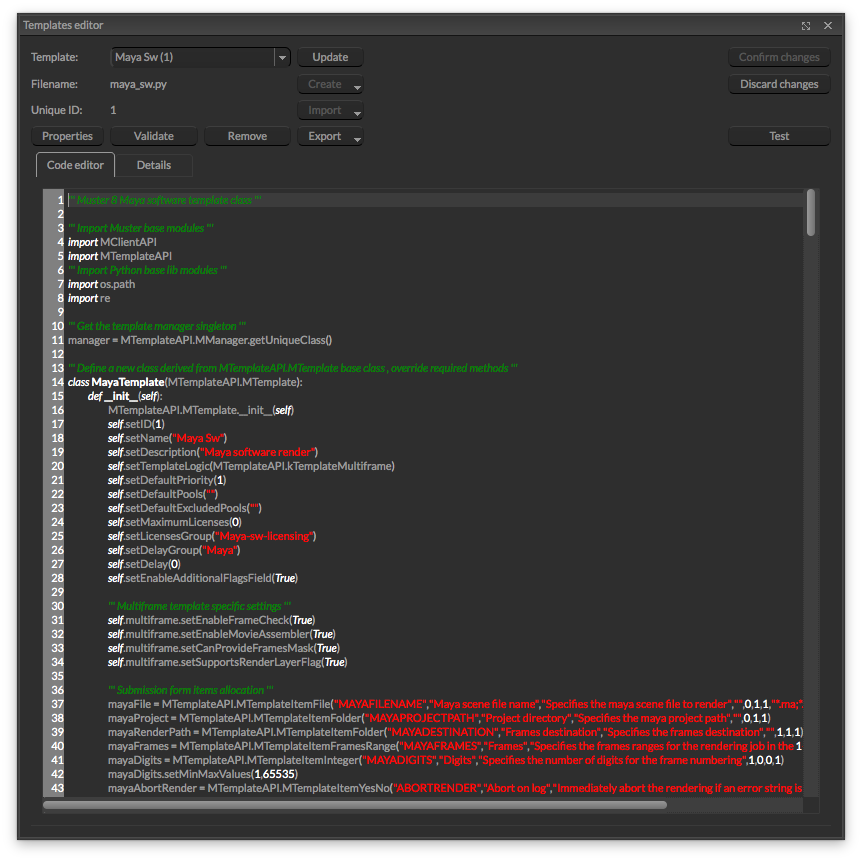
The templates code editor works as a Python text editor. You can configure its behaviours in regards to tabulation and spacing directly from the Console preferences. By editing the templates directly from within Console, you can push the changes live to all the clients and immediately test your code changes.
Additional information on templates are directly available in the templates section of this Wiki.